
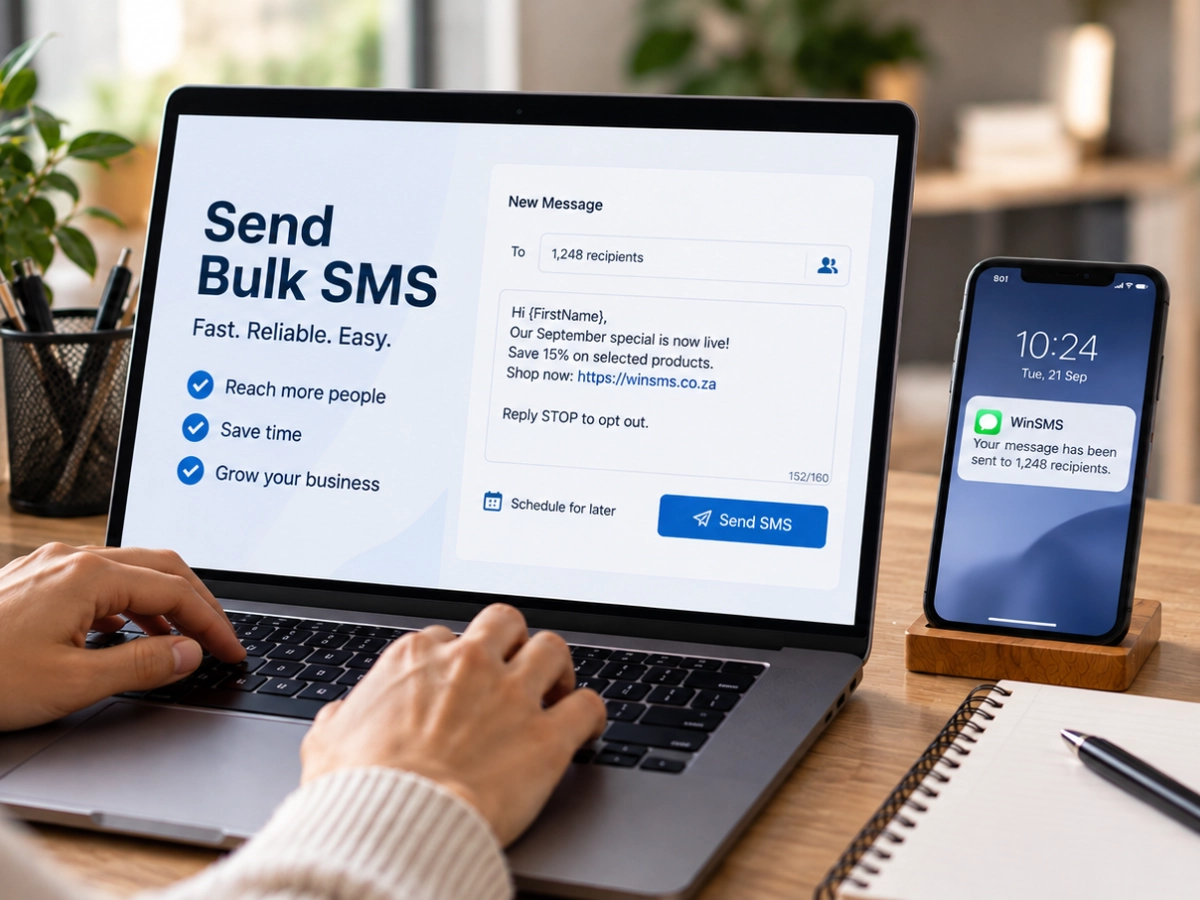
How to Send Bulk SMS from a Computer or CRM (Step-by-Step Guide)
Sending a message to one customer from your phone is easy. Sending an SMS to hundreds or thousands of customers, staff members or contacts is a very different task.
Fortunately, businesses don’t need to manually type mobile numbers into a phone or send messages one at a time.
Bulk SMS can be sent directly from a computer in several ways. You might upload a customer list from Excel, manage a campaign through a browser, use dedicated Windows software, send an SMS from your email account, or connect your CRM or business system directly to an SMS gateway.
The right option depends largely on where your data is stored and how you want the messages to be sent.
For example, a small business preparing an occasional marketing campaign may only need a web-based Bulk SMS platform. A company regularly sending order confirmations or appointment reminders may benefit from connecting SMS directly to its CRM or operational system.
WinSMS supports several sending options, including its online web app, Windows desktop software, Email-to-SMS and developer APIs, as well as a Microsoft Power Automate connector for workflow automation. Learn more about the WinSMS Bulk SMS products.
In this guide, we’ll walk through each method so you can decide which approach makes the most sense for your business.
What Do You Need Before Sending Bulk SMS?
Whichever sending method you choose, it helps to prepare a few basics first.
You’ll need a Bulk SMS account, sufficient SMS credits and a contact list containing valid mobile numbers. You should also know exactly what you want the message to achieve before you begin.
For a marketing campaign, that might mean generating sales, promoting an event or encouraging customers to book a service. For operational communication, the objective might be sending appointment reminders, delivery updates or account notifications.
Your contact list matters just as much as the message itself. Before sending, check that the numbers are current, that the recipients are relevant to the communication and, where the SMS is promotional, that your database and opt-out processes are properly managed.
It is also a good idea to send yourself a test SMS before launching a large campaign. That gives you a final opportunity to check the wording, links, dates and formatting on an actual mobile device.
Which Bulk SMS Sending Method Should You Use?
There isn’t one correct way to send Bulk SMS from a computer. Different methods suit different business workflows.
| If you want to… | Consider using… |
|---|---|
| Send campaigns from any browser | WinSMS web app |
| Work from a Windows computer | WinSMS desktop software |
| Upload an Excel or CSV customer list | Web app or desktop software |
| Send SMS from Gmail or another email client | Email-to-SMS |
| Trigger messages from a CRM, website or software | SMS API |
| Add SMS to Microsoft workflows | Power Automate Connector |
For most businesses sending their first campaign, the web app or desktop software will be the simplest starting point. API and workflow integrations become more valuable when SMS needs to happen automatically as part of another business process.
Method 1: Send Bulk SMS From a Web Browser
For businesses looking for a straightforward way to send Bulk SMS from a computer, a browser-based platform is often the easiest place to start.
The WinSMS online web app allows users to manage contacts, schedule messages and send Bulk SMS campaigns without installing Windows software. Because WinSMS.mobi is a Progressive Web App, it can be accessed across compatible phones, tablets, Macs and PCs.
You can learn more about the WinSMS online Bulk SMS platform.
Step 1: Prepare or Import Your Contacts
Once you have logged into your account, the first task is deciding who should receive the message.
Contacts can be saved inside the platform or imported from an existing list. If your database is currently stored in Excel, you can convert it to CSV before importing it, which we’ll cover in more detail below.
Try to avoid thinking of your contact database as one large group that should always receive the same message. If a campaign only applies to a certain location, customer group or product category, use the information available to create a more relevant audience.
Step 2: Create Your Message
Write the SMS with the recipient in mind.
A good message should make it immediately clear who is contacting them and why.
For example:
WIN SMS: September Special – Save 15% on selected products until Friday. Shop now: [link]. Reply STOP to opt out.
An operational message may look very different:
APPOINTMENT REMINDER: Your appointment with [Business] is tomorrow at 10:00. Call [number] if you need to reschedule.
The important thing is that the message suits its purpose rather than trying to fit too much information into a single SMS.
Step 3: Test and Schedule Your Campaign
Before sending to the full list, send a test message and open any included links.
Check the recipient group, spelling, dates, promotional terms and opt-out wording where applicable.
If everything is correct, you can either send immediately or schedule the campaign for a later time.
Scheduling is particularly useful for promotions, event reminders and other communications that need to arrive at a specific point in the customer journey.
Method 2: Send Bulk SMS From a Windows Computer
Businesses that prefer working through installed software can use the WinSMS desktop application for Windows PCs and laptops.
The software allows users to send SMS to individual contacts or larger contact groups and includes features such as scheduled messaging, templates, custom fields and merge fields.
You can view the WinSMS Bulk SMS software for Windows.
How the Desktop Process Works
Once the software has been installed and connected to your WinSMS account, you can add contacts manually or import them from a CSV file.
From there, contacts can be organised into groups so that you are not searching through one large database every time you need to send a message.
For example, a business might create separate groups for:
- Customers
- Staff
- Johannesburg customers
- Cape Town customers
- Event attendees
- Loyalty programme members
The software can also use merge fields where appropriate, which makes it possible to include information such as a customer’s name in the SMS.
For example:
Hi Thandi, a reminder that your appointment with ABC Dental is tomorrow at 14:00. Call 011 XXX XXXX to reschedule.
Once the campaign is prepared, review the list and send a test message before scheduling or sending it to the full audience.
How to Send Bulk SMS From an Excel or CSV List
Many businesses already maintain contact information in Microsoft Excel, so one of the most common questions is whether those contacts can be used for Bulk SMS.
The answer is yes, but the spreadsheet needs to be prepared correctly first.
WinSMS provides a dedicated guide for importing contacts from Excel.
The support guide recommends checking that contacts have valid mobile numbers, deleting records without numbers, removing blank rows and removing commas that could interfere with the CSV import. The spreadsheet is then saved as a CSV file before being imported into WinSMS.
Step 1: Clean the Spreadsheet
Before importing anything, take a few minutes to review the data.
A clean contact list might look something like this:
| First Name | Surname | Cell Number |
|---|---|---|
| Lerato | Mokoena | 2782XXXXXXX |
| James | Smith | 2783XXXXXXX |
| Ayesha | Khan | 2772XXXXXXX |
Keep the information organised into separate columns rather than combining names, numbers and other details into one cell.
This is also a useful opportunity to remove obvious duplicates, outdated contacts or entries that do not belong in the intended campaign.
Step 2: Save the File as CSV
Once the spreadsheet has been cleaned, save it as a CSV (Comma delimited) file.
CSV is commonly used because it stores the underlying contact data in a simple format that can be imported by other software.
Step 3: Import and Map the Contact Fields
Upload the CSV file into the SMS platform and match each spreadsheet column to the relevant field.
For example:
First Name → First Name
Surname → Surname
Cell Number → Mobile Number
Check a few records after the import to make sure the fields have been mapped correctly before using the list for a campaign.
It is worth remembering that being able to import a number does not necessarily mean you should send marketing to it. Where the SMS is promotional, businesses should still consider consent, previous opt-outs and the relevant direct marketing requirements.
For more detail, read our guide to South Africa’s Direct Marketing Opt-Out Registry and SMS marketing compliance.
Method 3: Send SMS Directly From Email
If your team spends most of the working day inside Gmail, Outlook or another email client, Email-to-SMS can be a convenient alternative to opening a separate messaging platform.
WinSMS allows authorised users to send SMS through an existing email account without installing additional software.
You can read more about the WinSMS Email-to-SMS service.
How Email-to-SMS Works
After Email-to-SMS has been enabled on the WinSMS account, an authorised email address can be used to create SMS messages.
The message is prepared in the email client and sent through the WinSMS service, which then delivers it as an SMS.
This can work well for businesses where occasional customer or staff notifications are managed by people who already spend most of their day in email.
Typical examples might include:
- Staff alerts
- Customer service updates
- Payment reminders
- Tenant notifications
- Internal operational messages
For organisations sending high volumes of automated notifications, however, an API integration will usually provide a more scalable option.
Method 4: Send SMS From a CRM or Business System
Once SMS becomes part of a regular business process, repeatedly exporting contact lists and uploading them to another platform can start to create unnecessary admin.
This is where an SMS API integration becomes useful.
An API allows your CRM, website, booking platform or other software to communicate directly with an SMS gateway.
In simple terms, the process looks like this:
Your CRM or software → SMS API → WinSMS → Recipient
WinSMS provides SMS APIs and development tools that can be used to integrate messaging into database applications, custom software, websites and other business processes. Its current developer resources include a REST API as well as HTTP, XML and FTP options.
Step 1: Decide What Should Trigger the SMS
Before worrying about the technical integration, decide what you actually want to automate.
A CRM or business platform might trigger an SMS when:
- An order is placed
- A payment is received
- A booking is confirmed
- An appointment is approaching
- A parcel is dispatched
- A lead reaches a specific stage
- An account status changes
The trigger should correspond to a useful customer or business process.
For example:
Appointment booked → Send confirmation SMS
or
Parcel dispatched → Send delivery update
This type of automation can remove a significant amount of repetitive administration.
Step 2: Connect the System to the SMS API
The technical setup will depend on the software you use.
A custom CRM may connect directly to the WinSMS REST API, while another platform may require middleware, a plugin or a workflow tool.
A developer will usually configure the system to pass the required information — such as the recipient number and message content — to the SMS gateway when the trigger occurs.
For businesses wanting to understand the concept before starting an integration, our guide to what an SMS API is and how it works provides a useful introduction.
Step 3: Test the Workflow Properly
Automated messages should always be tested before they are rolled out to customers.
Make sure:
- The right trigger causes the message
- The correct mobile number is used
- Personalisation fields populate correctly
- The message only sends once
- Delivery failures can be identified
- The workflow behaves correctly if information is missing
Automation is valuable because it allows processes to run at scale. That also means a mistake can scale just as quickly, so testing is essential.
Can You Send Bulk SMS Directly From Any CRM?
Potentially, but the exact method will depend on the CRM.
Some platforms allow direct API connections. Others work through integrations, plugins or automation tools. Custom systems may require development work.
For that reason, it is better to think about CRM SMS sending as a combination of three parts:
Your CRM + Integration Method + SMS Gateway
rather than assuming every CRM has a built-in Bulk SMS function.
WinSMS provides API tools that can connect messaging to different software and business processes, but the business should confirm what its particular CRM supports before beginning an integration.
Method 5: Use Microsoft Power Automate to Trigger SMS
Businesses already using the Microsoft ecosystem may not need to build a completely custom API integration for every workflow.
WinSMS offers a Microsoft Power Automate custom connector, allowing SMS to be added as an action inside Power Automate flows. The current WinSMS site gives examples such as triggering an SMS when specific emails are received or sending an SMS at another point in an existing workflow.
This can be useful when SMS needs to form part of an existing Microsoft-based process.
For example:
New form submission → Send SMS notification
High-priority email received → Send staff alert
Workflow reaches approved status → Send customer update
Rather than manually checking the original system and sending a separate SMS, the workflow can trigger the communication automatically.
Which Option Is Best for Your Business?
The technology should fit the way the business works, not the other way around.
Use the Web App If You Want Simplicity
The web app is likely to suit businesses that prepare campaigns manually, want to work from different devices and do not need deep system integration.
Use Desktop Software If You Prefer Working From a Windows PC
Desktop software can work well for users who regularly manage CSV contact lists, groups and templates from a Windows computer.
Use Email-to-SMS for Simple Email-Based Workflows
If your staff already work primarily through email and only need to send occasional SMS notifications, Email-to-SMS can keep the process familiar.
Use an API for Automated or High-Volume Processes
If messages need to be triggered automatically by a CRM, website or internal system, an API is usually the more flexible approach.
Consider Power Automate if You Already Use Microsoft Workflows
For businesses using Microsoft Power Automate, the WinSMS connector can provide a practical way to add SMS to an existing flow without creating an entirely separate messaging process.
Keep Your Contact Data Clean Before You Send
Regardless of the technology you choose, your campaign will only be as good as the data behind it.
An Excel spreadsheet or CRM might contain years of customer information, including active customers, old enquiries, duplicate records, suppliers, staff members and people who have previously opted out of marketing.
That does not mean every number should be added to the same campaign.
Before sending, consider:
- Whether the mobile number is valid
- Where the contact came from
- Whether there are duplicate records
- Whether the recipient is relevant to the message
- Whether previous opt-outs have been respected
- Whether the communication is transactional or promotional
This last point is particularly important.
A business may have a customer’s number because they placed an order or booked an appointment. That does not automatically mean the number can be used for unrestricted marketing.
Our guide to transactional SMS vs promotional SMS explains the difference between operational messages and direct marketing in more detail.
A Simple Bulk SMS Workflow for Your First Campaign
If you are preparing your first Bulk SMS campaign, you do not need to overcomplicate the process.
A sensible workflow looks like this:
- Choose the sending method that fits your business.
- Prepare and clean your contact list.
- Select the audience that actually needs the message.
- Write a concise SMS with a clear purpose.
- Review any marketing and opt-out requirements.
- Send yourself a test message.
- Schedule or send the campaign.
- Review delivery and campaign results afterwards.
The more often you send, the more valuable it becomes to standardise this process.
Eventually, repetitive communications such as appointment confirmations, delivery updates or account notifications may be better automated rather than recreated manually every time.
How WinSMS Supports Different Ways of Sending Bulk SMS
Businesses do not all communicate in the same way, which is why having several sending options can be useful.
WinSMS provides Bulk SMS products for different workflows, including browser-based sending, Windows desktop software, Email-to-SMS, Microsoft Power Automate and developer APIs.
A smaller business might begin by uploading a CSV list into the web app and scheduling a marketing campaign.
As the business grows, it could integrate the WinSMS API into its booking platform or CRM so routine notifications are triggered automatically.
That means you do not necessarily need to choose one sending method forever.
The better question is:
What is the simplest reliable way to send this particular type of SMS?
For an occasional campaign, that might be the web app.
For a staff alert, it might be Email-to-SMS.
For thousands of automated order notifications, it might be an API.
Choosing the method around the communication makes the whole process easier to manage.
Frequently Asked Questions About Sending Bulk SMS From a Computer or CRM
Can I send Bulk SMS from my computer?
Yes. Bulk SMS can be sent from a computer through a web-based SMS platform, Windows desktop software, email or an API integration. The best option depends on whether the messages are being prepared manually or triggered automatically.
Can I send Bulk SMS from an Excel spreadsheet?
Yes. An Excel contact list can be cleaned and saved as a CSV file before being imported into a compatible Bulk SMS platform. Make sure the spreadsheet contains valid mobile numbers and that the contact fields are structured correctly.
What file format should I use to import SMS contacts?
WinSMS supports CSV imports for contact lists. If your contacts are stored in Excel, the spreadsheet can be saved in CSV format before being imported.
Can I send SMS directly from a CRM?
Yes, provided the CRM supports an appropriate integration method. Depending on the platform, this could involve an SMS API, connector, middleware or custom development.
What is an SMS API integration?
An SMS API integration allows a CRM, website or other business application to communicate directly with an SMS gateway. This means messages can be triggered automatically by events such as an order, booking, payment or account update.
Can I send SMS from Gmail?
Yes. WinSMS offers Email-to-SMS, which allows authorised users to send SMS from Gmail or another email client without installing separate desktop software.
Does WinSMS have Bulk SMS software for Windows?
Yes. WinSMS offers desktop software for Windows PCs and laptops, with features including contact management, CSV imports, scheduled messages, templates and merge fields.
Can WinSMS integrate with Microsoft Power Automate?
Yes. WinSMS provides a custom Microsoft Power Automate connector that allows SMS actions to be added to Power Automate workflows.
Do I need a developer to send Bulk SMS?
Not if you are using the web app, desktop software or Email-to-SMS. A developer may be needed if you want to create a custom integration between WinSMS and a CRM, website or other business application.
Final Thoughts
There is no single “right” way to send Bulk SMS from a computer.
For some businesses, the simplest solution is uploading a customer list and sending a campaign through a browser. Others may prefer dedicated desktop software or the convenience of sending SMS directly from email.
Once messaging becomes part of a larger operational process, integration becomes more valuable. Connecting an SMS API to a CRM, website or booking platform can turn manual tasks into automated customer communication.
The important thing is to start with the workflow rather than the technology.
Ask where your contact data already lives, what needs to trigger the message and how often your team will be sending.
From there, you can choose the most practical approach.
Web app for straightforward campaigns.
Desktop software for Windows-based sending.
Email-to-SMS for simple email workflows.
APIs and Power Automate for automation and integration.
WinSMS provides each of these options, allowing businesses to start with a simple Bulk SMS campaign and introduce deeper integration as their communication needs grow.
Choose a Bulk SMS Provider You Can Trust
Not all Bulk SMS providers are created equal. WinSMS has helped South African businesses communicate reliably for over 20 years with transparent pricing, no expiry on credits, local support, powerful SMS APIs, and flexible messaging solutions designed to scale with your business.
Sign Up for a Free TrialNo contracts • No expiry • Local SA support
Supported Networks: Vodacom · MTN · Cell C · Telkom Mobile